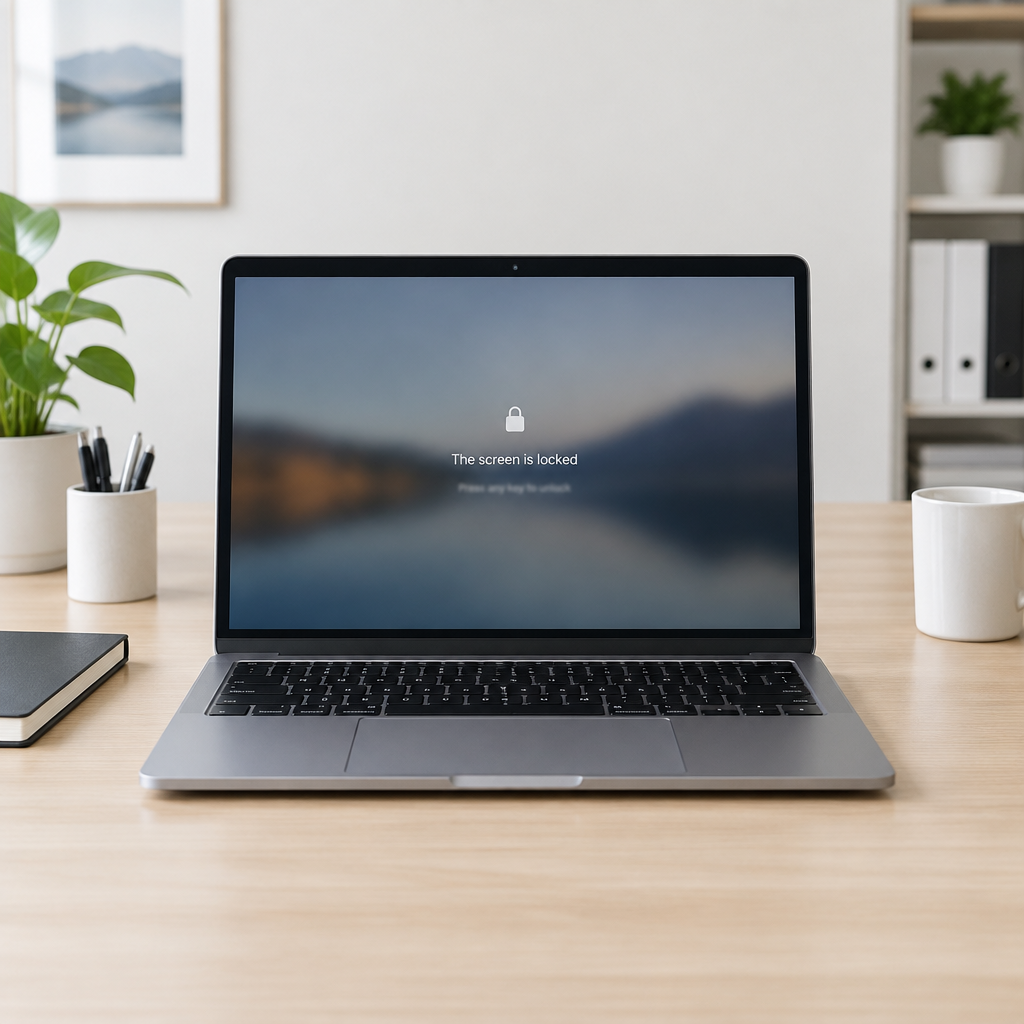
"Windows signs out every active session, hides all sign-in options and shows a locked screen," said Windows Insider communications lead Stephen Lines.
How Remote Lock behaves on locked devices
Microsoft is testing a capability called Remote Lock that lets enterprise IT administrators render a lost or stolen Windows device unusable for local access while preserving its configuration and data. According to Microsoft, Remote Lock does not wipe the device: the device remains enrolled and managed, BitLocker remains on, and user data stays in place. The lock persists across restarts and while the device is offline, and only an administrator can lift it remotely.
When Remote Lock is applied, PINs, passwords, local administrators, and web sign-ins stop working on the locked device; the system signs out active sessions, hides sign-in options, and shows a locked screen. Microsoft also noted that a user's credentials remain valid for signing into other devices that have not been locked.
Supported Windows builds, editions, and enrollments
The feature is shipping to devices running Windows 11 Insider Preview builds in the Beta (Build 26320.10003) and Experimental (Build 26340.10013) channels. Administrators can target Microsoft Entra-joined, hybrid-joined, or MDM-enrolled devices that run Windows Enterprise, Education, or Pro.

Audit-ready is a season. It shouldn't be.
Evidence in spreadsheets, controls drifting between audits, frameworks multiplying on flat headcount. Nubivance runs continuous compliance on Rapid7 Cyber GRC - SOC 2, HIPAA, ISO 27001, PCI, CMMC.
End the scrambleAdmin workflow inside Microsoft Intune
Remote Lock is configured through Microsoft Intune custom configuration profiles. Microsoft documents a straightforward policy workflow:
- In the Intune admin center, go to Devices > Windows > Configuration > Create > New policy. Choose Windows 10 and later, then Templates > Custom.
- Name the profile (for example, "Remote lock - ON") and add the settings, setting LockState = 1 to apply the lock.
- Assign that profile to a device group reserved for locked devices. To lock a device, add it to that group; the lock takes effect at the device's next check-in.
- To unlock, create a second profile with LockState = 0 and assign it to an unlock group, then move the device from the lock group to the unlock group.
Microsoft explicitly warns that enabling Remote Lock does not isolate the device from the enterprise network or erase it; device isolation and wipe remain separate controls in Intune.
Security trade-offs: BitLocker, recovery environments, and physical access
Microsoft emphasizes that because Remote Lock does not block the Windows Recovery Environment, Safe Mode, or booting from USB or other media, administrators and end users must keep BitLocker enabled to protect data if a device is reimaged or the drive is removed. In short: Remote Lock limits interactive sign-in and preserves management state, but it is not a substitute for disk encryption or the separate device isolation and wipe controls available in Intune.
Related Windows 11 tests: FIDO2 passkey management and privacy controls
Alongside Remote Lock, Microsoft is testing advanced security key management features in these same Windows 11 preview builds. Those features let users view and manage passkeys stored on a FIDO2 security key individually, and let administrators configure enterprise policies such as always-required user verification, minimum PIN length, and enterprise attestation.
Microsoft also noted that, in August, it announced new privacy controls allowing Windows 11 users to choose which desktop apps can access their microphone, camera, and precise location. These additions arrive alongside the device-control experiments in the Insider channels.
What this means for technologists, procurement leaders, and end users
- Technologists and security teams: Expect to add Remote Lock to existing incident playbooks but not to treat it as a full-data-protection control. Teams will need to coordinate Remote Lock with BitLocker policies, device isolation, and wipe procedures in Intune.
- Procurement and device managers: When piloting Remote Lock, plan testing on devices running the specified Insider builds (Beta Build 26320.10003 or Experimental Build 26340.10013) and confirm support for Microsoft Entra-joined, hybrid-joined, or MDM-enrolled profiles before broad deployment.
- End users and help desks: Users should understand that a Remote Lock prevents local sign-ins on the locked device but does not invalidate their credentials elsewhere; help-desk workflows will need to include the Intune unlock profile (LockState = 0) and group moves to restore device access.
Microsoft's Remote Lock aims to fill a practical gap between a simple remote block of sign-in and a full device wipe, but it leaves intact several technical avenues—Recovery Environment, Safe Mode, and external boot—which means encryption and complementary Intune controls remain essential parts of a complete response. The feature is currently limited to Windows 11 Insider Preview builds in the Beta and Experimental channels and is configured through Intune's custom profiles, using LockState values to enact and lift locks.