What Microsoft says Intelligent Terminal can do
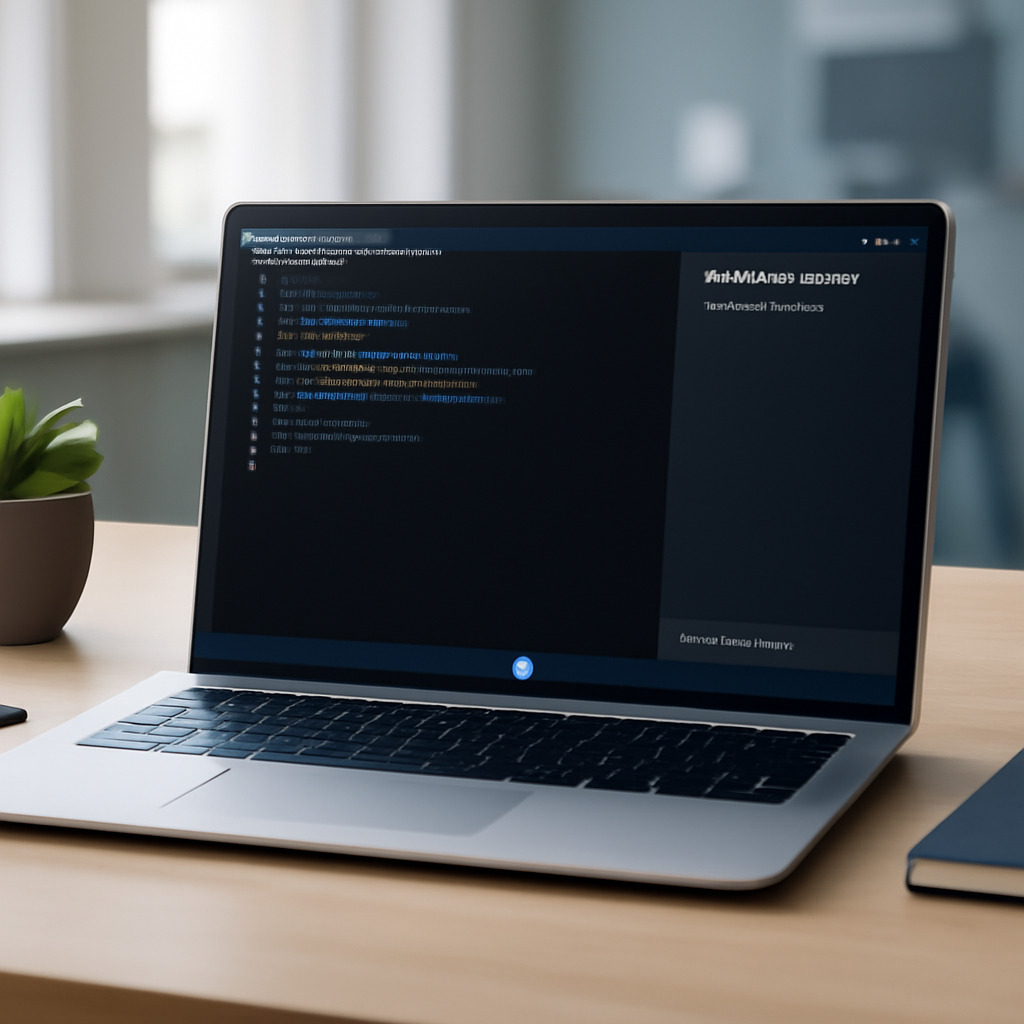
Microsoft positions Intelligent Terminal as a built‑in assistant inside a Windows Terminal fork that "can help you explain errors, draft commands, and fix problems without leaving the terminal." According to the hands‑on report, the agent is designed to stay aware of what is happening in the terminal and to help when a command fails. It also retains awareness of active and past agent sessions so users can return to earlier work without losing their place.
Agent selection and models listed in the UI
On first launch, Intelligent Terminal asks users to choose the AI agent that will run in the Terminal pane. The reviewer’s screenshot lists GitHub Copilot, Claude, Codex, and Gemini as available options. In that view GitHub Copilot is shown as "will be installed," while Claude, Codex, and Gemini appear already installed. The UI places an AI pane below the shell where the chosen model runs (in the reviewer’s case, "Claude Code" was running inside the pane).

The cyber insurance questionnaire just landed. Now what?
SOC 2, HIPAA, insurance renewals - someone has to own security strategy. Nubivance provides fractional CISO leadership without the full-time salary.
Get a security leadControls: error detection, suggestions, and panel management
The app exposes separate toggles for "Automatic error detection" and "Automatic error suggestion." When error detection is enabled, Terminal can notice failed commands. Error suggestion takes the next step and sends the error to the selected AI agent for a possible fix. The report notes clear, compact controls: on the left you can show or hide the agent panel and turn error detection on or off through its icon; on the right is an agent management icon that opens the session management panel and an agent status bar.
Session management and the Resume session feature
The hands‑on singled out Intelligent Terminal’s Resume session capability as one of its best features. Unlike the current Windows Terminal, which has a toggle to reopen previously closed tabs but does not restore prior agent sessions, Intelligent Terminal tracks active and past agent sessions and lets you reopen previous agent work. The agent can remember what it was doing so users can go back and forth between earlier agent work without relying on the model’s own resume skill.
How the interface behaves during coding tasks
In the reviewer’s example using Claude Code, the agent could plan a coding task and then prompt the user to choose whether to auto‑accept edits, manually approve edits, or keep planning. That interaction model — a split between planning and explicit acceptance of changes — is visible in the pane and tied to the session management system that preserves a record of agent activity.
Distribution, scope, and who should consider it
Microsoft has made Intelligent Terminal available as a separate app rather than bundling it into Windows by default. It is not included with Windows installations yet. Interested users can download Intelligent Terminal from the Microsoft Store or from GitHub. The hands‑on review cautions implicitly that Terminal AI is "not meant for everyone," noting Microsoft’s decision to ship it as a separate fork rather than as an integrated, automatic addition to Windows Terminal.
For users who want an AI assistant tightly coupled to terminal state — for example, an agent that can see failed commands, propose fixes, and keep a memory of past agent interactions — Intelligent Terminal shows how those capabilities can be surfaced inside a familiar shell. The design choices highlighted in the review emphasize explicit control: pick your agent, toggle automatic detection and suggestion, and accept or reject agent edits rather than having the model act unilaterally.
How this experiment in terminal‑native AI will be adopted — whether as a productivity boost for developers who rely on iterative agent sessions, or as a niche tool for those who prefer to keep AI activity separate from their main Windows installation — is left to users to decide. The app is available now for those who want to try it.
Read the original hands‑on at BleepingComputer: Hands on with Intelligent Terminal, an AI‑powered Windows Terminal.