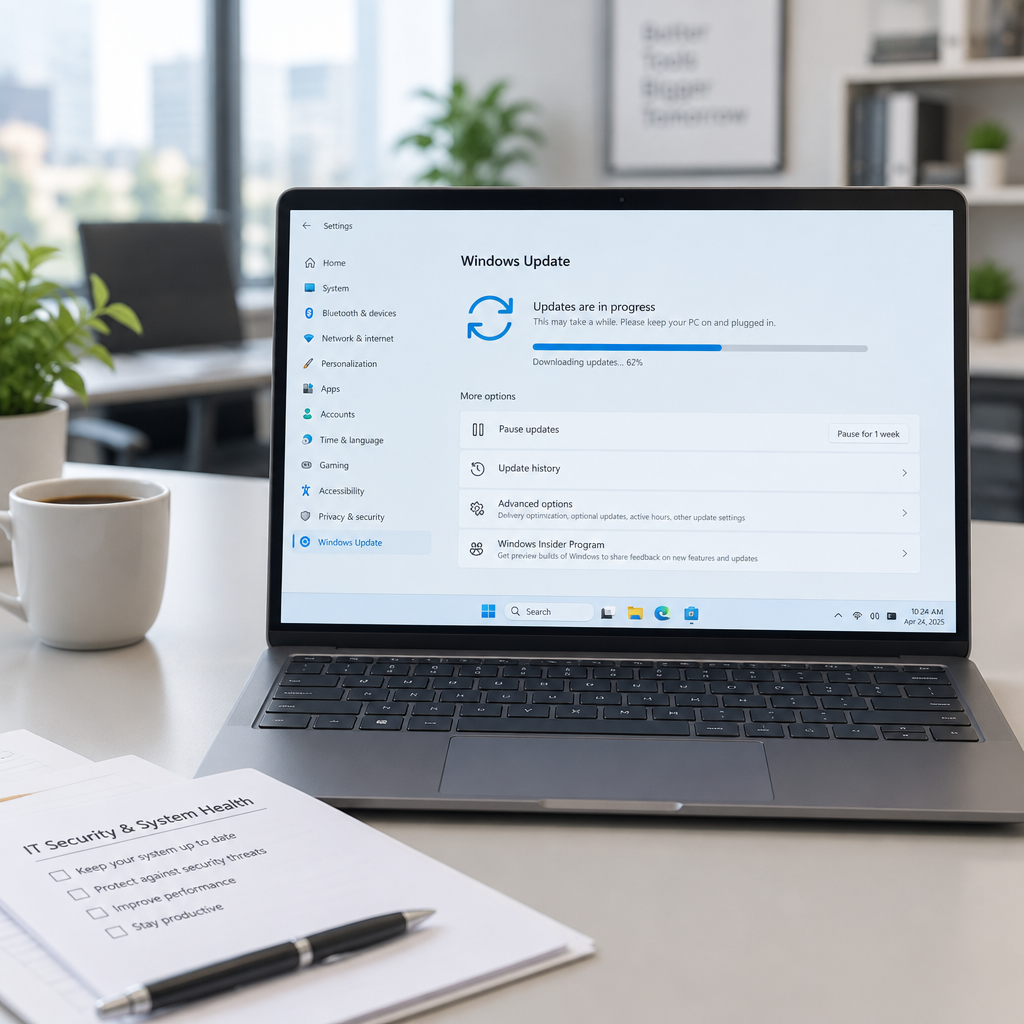
Today's updates are mandatory as they contain the November 2026 Patch Tuesday security patches for hundreds of vulnerabilities discovered in previous months.
What Microsoft released and how to get it
Microsoft has released cumulative updates for Windows 11 as part of the November 2026 Patch Tuesday cycle. The bulletin identifies the release for builds tied to 24H2, with the same update applying to 25H2 and 26H2 as well as 23H2. You can install the update from Start > Settings > Windows Update by clicking "Check for Updates," or manually download and install it from the Microsoft Update Catalog. Microsoft noted this is the eleventh Patch Tuesday release in 2026.
New File Explorer context menu, AutoPlay, and related UI changes
The update introduces a redesigned context menu in File Explorer described as faster, simpler, and more customizable. Users can personalize the menu via a "Customize menu" option at the bottom of the context menu to select built-in commands (for example, Send to and Create shortcut), add commands such as Print, choose which app extensions appear in the main menu or a submenu, hide the app extensions submenu, and move Properties to the bottom of the menu. The default configuration requires no action; holding Shift while right-clicking on the desktop reveals more options.
Other File Explorer refinements include consistent layout of key file information on search results, dark mode support for the Folder Options dialog, and an address-bar shortcut that supports ~\\ to jump quickly to a user profile folder (for example, ~\\AppData). The update also modernizes the AutoPlay dialog with dark mode support, improved response to text scaling and display settings, and AutoPlay notifications that appear in the notification center.

This site is the portfolio.
OSINTSights runs on Cloudflare Workers, D1, R2, and Vectorize, with an AI pipeline on Hetzner ARM. Nubivance designed, built, and operates it. We do the same for clients.
See what we buildRecovery changes: WinRE Wi‑Fi reuse and Cloud rebuild
The update expands recovery capabilities. Windows recovery (WinRE) can now automatically reuse eligible Wi‑Fi profiles already saved in Windows—including supported certificate-based networks—so devices can get online automatically during recovery scenarios such as quick machine recovery or cloud rebuild; this capability is on by default and IT administrators can disable it.
Microsoft also introduces Cloud rebuild, a new recovery option that reinstalls Windows 11 using a Windows image and device drivers downloaded from Windows Update, including when Windows is unable to start and without requiring USB media or a custom image. Cloud rebuild includes drive sanitization options (remove files or securely erase data using the storage hardware’s erase capability) and remote management via the Recovery CSP so administrators can configure and start a Cloud rebuild remotely using either the currently installed build or a specified target build.
Cloud rebuild can be started from Settings > System > Recovery > Rebuild PC (which restarts into WinRE), or from WinRE itself when Windows fails to boot after repeated attempts. The process requires a wired Ethernet or Wi‑Fi connection and presents the target Windows build, edition, and language plus confirmation of data‑loss options before reinstalling.
Security, platform protections, and a USB audio fix
The update expands memory integrity (HVCI) protection across eligible devices so supported PCs may have memory integrity enabled during updates to help prepare for advanced Windows security features, while respecting existing user or administrator choices. The release also adds a warning for Data Protection API (DPAPI) prompt-based protect and unprotect operations, noting that the prompt-based experience will be retired in April 2027; applications and administrators using prompt‑based flows are advised to stop creating new prompt‑protected data and migrate or decrypt existing prompt‑protected data before retirement.
Microsoft said it is not aware of any new issues with this month's Patch Tuesday and also patched a long‑standing issue that in some cases broke USB audio on affected PCs.
Windows networking, accessibility, and international text support
Networking updates include support for IPv6 CLAT (client‑side 464XLAT) for Wi‑Fi and Ethernet interfaces so IPv4‑only applications can reach IPv4 services from IPv6‑only networks. PREF64 prefix discovery is performed via Router Advertisements by default, with DNS ipv4only.arpa as a fallback. The bulletin lists a netsh command to enable CLAT globally:
- netsh interface clat set global permit=enabled pref64fromdns=enabled pref64fromra=enabled
On accessibility, Magnifier gains a contrast theme toggle and per‑monitor zoom with viewport locking for multi‑monitor setups, and Live Captions adds an "Include screen reader audio" setting (off by default). Narrator expands math reading and navigation support for supported Microsoft 365 apps and certain browser versions. The update also adds Windows text shaping support for Unicode 17.0, including four newly encoded scripts: Beria Erfe, Sidetic, Tai Yo, and Tolong Siki.
What this means for technologists, IT administrators, and end users
- Technologists and security teams: Expect mandatory security fixes to be applied via Patch Tuesday; watch for the expanded memory integrity changes and DPAPI prompt deprecation when planning application compatibility and migration timelines.
- IT administrators and enterprise deployers: Test Cloud rebuild and the WinRE Wi‑Fi reuse behavior (on by default) in your imaging and remote recovery workflows; the remote management options and Group Policy/Recovery CSP controls are practical changes to incorporate into recovery playbooks.
- End users: New customization options in the context menu, improved AutoPlay and File Explorer behaviors, and fixes such as the USB audio repair should be visible immediately after installing the update; no action is required to keep the default configurations.
For full technical details and the official guidance on installing or disabling specific features, see the original Microsoft advisory linked below.